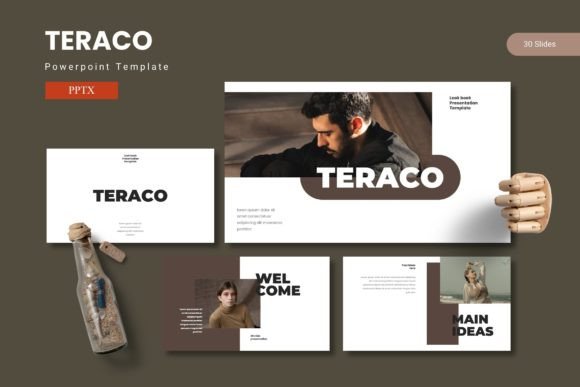
Remugan – Powerpoint Template
You have a solid idea—maybe a quarterly business review, a client pitch, a workshop module, or a portfolio showcase. The content is ready, the data is clean, but the slides still feel flat. That gap between having the right information and presenting it in a way that actually lands is where most presentations falter. A template like Remugan is not a shortcut to skip the work; it is a structural foundation that lets you focus on message and narrative instead of alignment, color choice, and slide-by-slide formatting.
What Remugan Actually Provides for Your Workflow
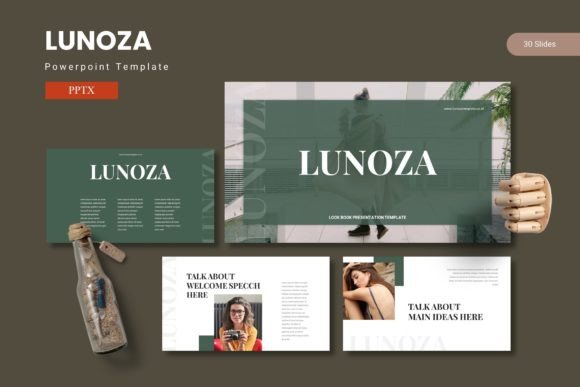
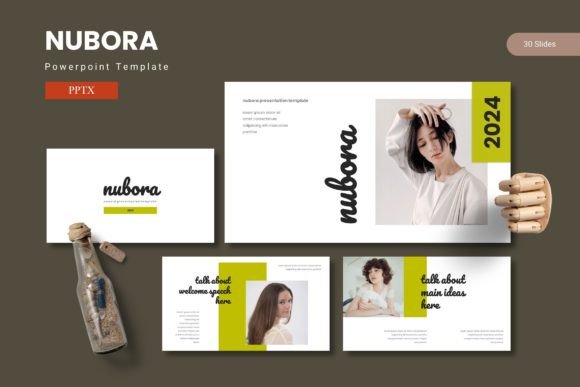
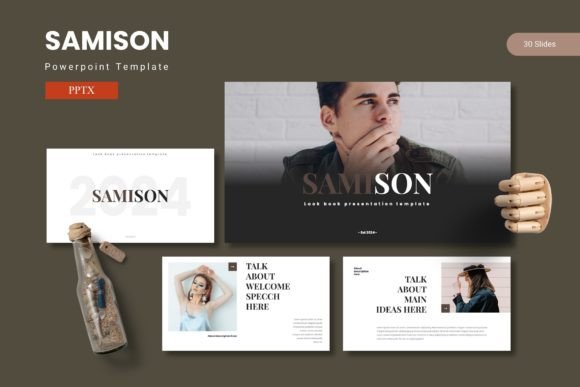
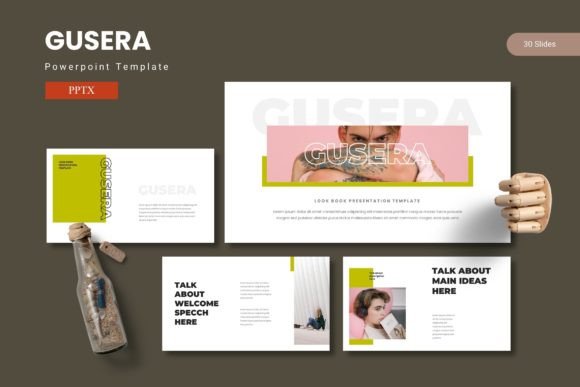
Remugan is a PowerPoint template kit built around the idea that one presentation rarely fits every context. It delivers 150 total slides across five premade color schemes, with each of the five included PPTX files containing 30 slides. That means you get a full presentation structure in each color variant—not just a few title slides and a token chart. The template is organized with section break slides, handcrafted infographics, master slides, and pixel-perfect illustrations that remain fully resizable and editable. Picture placeholders work with drag-and-drop simplicity, and dedicated gallery and portfolio slides are included for visual-heavy content.
What sets this apart from generic templates is the deliberate layering. The master slide structure ensures that any change you make to a parent slide propagates through the deck consistently. That is a practical time-saver when you need to update a recurring monthly report or adapt a standard pitch deck for different clients. The five color variations are not superficial recolorings—each is applied across icons, charts, backgrounds, and typography accents, giving you a distinct visual identity without rebuilding anything from scratch.
Where Remugan Fits in a Broader Process
A presentation is rarely the starting point. It usually sits in the middle of a larger workflow—after research and analysis, before a decision or approval. Remugan is designed to compress the time you spend on that middle phase. Instead of opening a blank slide deck and staring at a white canvas, you begin with a structured set of slides that already knows how to handle data, narrative flow, and visual pacing.
If you are preparing a project proposal, you can start with the infographic slides to map out timelines and budgets, then layer in the gallery slides for case study visuals, and finish with the clean data charts. If you are building a portfolio, the gallery and portfolio slides become your core, with section breaks separating work categories. If you are running a workshop, the section breaks and title slides create natural pauses for discussion, and the editable infographics let you capture group input in real time.
This template works before a presentation by saving you the upfront design decisions that slow down drafting. It works during a presentation because the consistent color scheme and clean layout reduce cognitive load for your audience. And it works after a presentation because the editable source files let you refine, reorder, and repurpose slides for follow-up materials, handouts, or internal documentation.
How It Interacts with Other Tools and Decisions
Remugan is a PowerPoint-native template, so it integrates directly into the environment most organizations already use. No need to learn a new platform or export files to a different format. The drag-and-drop picture placeholders work with images from your local drive, cloud storage, or design tools like Canva and Photoshop. The resizable graphics mean you can insert screenshots, diagrams, or wireframes from tools like Figma, Miro, or Lucidchart without worrying about resolution loss or misalignment.
The template also interacts well with data sources. If you pull numbers from Google Sheets, Excel, or a CRM like Salesforce, the chart slides are structured to accept those inputs cleanly. You can copy and paste chart data directly into the existing chart objects, and the color scheme will apply automatically—no need to manually match brand colors. For teams that use presentation review platforms like PowerPoint Live or shared slide libraries, the master slide structure ensures that any reviewer edits stay within the established design system.
Decisions about which color variant to use can be made based on context rather than whim. The darker color schemes work well for evening presentations, investor meetings, or creative portfolios where contrast matters. The lighter schemes suit daytime workshops, internal training, or proposals where readability and approachability are priorities. You can also mix variants by copying slides between PPTX files, but the recommended approach is to pick one scheme and stick with it for consistency.
Practical Implementation Tips
Before you open any slide, take five minutes to plan your structure. Remugan gives you 30 slides per color file, but you are not required to use all of them. Identify which slide types you actually need—title, section break, data visual, gallery, portfolio, closing—and remove the rest. A lean 15-slide deck built from this template will feel more focused than a bloated 30-slide deck that tries to cover everything.
Use the handcrafted infographics strategically. Infographics work well for timelines, process steps, comparison matrices, and hierarchical data. They do not work well for dense numerical tables. If you have a table with more than four columns, keep it as text on a clean slide rather than forcing it into an icon-heavy layout. The template includes variety precisely so you can match the visual format to the content type.
The picture placeholders are one of the most efficient features. Rather than resizing and cropping every image manually, drop your image into the placeholder and it scales automatically. This is especially useful when you are working with multiple images—like headshots for a team slide or product shots for a portfolio. Drag all images into placeholders first, then adjust the cropping if needed. This one habit can cut image handling time by more than half.
For long-term use, treat the master slides as your style guide. If you need to change the font across an entire deck, modify the master slide. If you want to adjust the accent color or apply a gradient to all section breaks, do it once on the master. This is where Remugan's master-based architecture pays off most. A change that would take 30 minutes slide-by-slide takes two minutes on the master.
Staying Consistent Across Multiple Presentations
If you produce presentations regularly—monthly reports, quarterly reviews, recurring client updates—consistency is not just about looks; it is about efficiency. When your audience recognizes the visual language of your slides, they spend less time orienting themselves and more time absorbing the content. Remugan supports this through its five color files. You can assign one color scheme per client, per product line, or per department. Each scheme stays visually distinct while using the same structural layout, so your team does not have to learn a new template every time.
To operationalize this, create a folder structure on your drive: one folder per color scheme, each containing the original PPTX file and a working copy. When you start a new presentation, duplicate the working copy rather than the original. This keeps the source file clean and available for future use. Add a simple naming convention—like [Client Name]_[Date]_[Color Variant]—so you can search and retrieve past decks without opening every file.
Photo and font information is included in the download folder, which is a detail worth paying attention to. If you share slides with collaborators or clients who do not have the same fonts installed, PowerPoint will substitute them automatically, potentially breaking your layout. The included font information tells you exactly what was used and where to obtain it. Installing the fonts before you start editing prevents layout shifts later.
Usability Considerations for Different Roles
For marketers, the gallery and portfolio slides are the standout feature. Product shots, campaign visuals, case study images—these slides present visual content in a clean grid without distracting backgrounds or busy overlays. You can also repurpose the gallery slides as team introduction slides, with headshots and brief bios.
For educators and trainers, the section break slides are where the real value lies. A section break signals a shift in topic, invites a question, or sets up an exercise. In a training deck, you can use section breaks as transition points between modules, giving learners a moment to absorb before moving on. The editable infographics also work well for illustrating processes, cycles, or hierarchies that learners need to understand conceptually before diving into details.
For freelancers and small business owners, the time savings are direct. If you bill by the hour or simply want to spend less time on slide design, Remugan removes the need to choose fonts, colors, icon styles, and layout grids from scratch. You still need to write your content and think about your story, but the visual scaffolding is already in place. That can reduce presentation preparation time from half a day to a couple of hours, depending on complexity.
For entrepreneurs pitching to investors, the handcrafted infographics and data visualization slides are most useful. Investors respond well to clear, visual data—growth charts, market comparisons, unit economics. The template's chart slides are designed to present numbers cleanly, without decorative clutter that distracts from the metrics that matter. Use the portfolio slides if you are showcasing past products, and the gallery slides if you have customer logos or press mentions to display.
Long-Term Value and Repurposing
A good template does not just serve one presentation; it becomes a resource you return to. Because Remugan includes five distinct color files, you effectively have five different presentation systems at your disposal. Over the course of a year, you might use the dark scheme for a year-end investor deck, the light scheme for a Q2 team offsite, and a neutral scheme for a client workshop. Each presentation feels fresh, but you never have to learn a new layout or rebuild your structure from zero.
The master slide approach also future-proofs your decks. If you update your brand colors or switch to a new corporate font, you can modify the master slides in the original template file, then apply those changes to existing decks by copying slides or rebuilding from the updated source. This is far more efficient than editing 30 slides individually in each deck you have ever created.
Do not overlook the Read Me First file included in the folder. It contains installation instructions, font links, photo credits, and usage notes. Taking two minutes to read it before you start editing can save you the frustration of missing fonts, broken placeholders, or incorrect image cropping. It is the kind of documentation that experienced users appreciate and new users often skip to their own regret.
Bringing It into Your Routine
The most straightforward way to integrate Remugan into your workflow is to keep the template files in a dedicated folder on your computer or cloud storage. When a presentation task comes up, open the relevant color variant, delete the slides you do not need, and start populating content. Over time, you will develop preferences—maybe the blue scheme for client decks, the green scheme for internal reports, the gray scheme for draft versions that get reviewed before a final polish.
If you collaborate with a team, share the template files and a short style guide covering which color to use for which context, how to handle image cropping within placeholders, and where to find the font files. This eliminates the inconsistency that inevitably arises when each team member builds slides from scratch. Presentations become recognizable as belonging to your organization, and the lower design overhead means more time spent on the actual message.
Remugan is not a magic button that writes your presentation for you. What it does is remove the friction of visual decision-making so you can focus on structure, clarity, and impact. That is a fair trade, and one that pays dividends every time you open PowerPoint.